Hey all! Thanks for dropping in to my blog which is a unique blog in its kind. You see I love mobile content and search a lot of sites to get that unique, moody ringtone or wallpaper for my mobile. Why? Because my mobile means everything to me and it shows who I am. Yes, I love my mobile and I know you do too.
read more | digg story
Wednesday, July 30, 2008

Thursday, July 24, 2008
Featured Stores Week 31
Major Artist of the Week: Shaggy
Shaggy is a Jamaican America reggae singer who emerged in the early '90s as the biggest crossover success in dancehall reggae. This Grammy award winner has the number-one hit singles "It Wasn't Me" and "Angel" to his credit. He has released a total of nine albums, two of them being multi-platinum. To date, Shaggy has sold over 20 million albums. For Shaggy, the driving force is making music that celebrates his culture. He is Jamaica's only living Diamond and top selling artist.
Get Shaggy on your mobile. Go to www.ringtones.mobi/shaggyringtones to find all the ringtones of Shaggy's hit songs.

----------------------
Indie Band of the Week - Ashes of Soma
Ashes of Soma is a Canadian alternative rock band constituting of the band members Randy Gray (vocals, acoustic guitar), Mike Preney (guitar), Paul Doman (drums) and Joel Bishop (bass). Recognized for their single Emancipate, the band spent a couple of years developing their sound and released their 1st Album Exit 647 in 2005 .The band's influences include Tool, Sevendust, Disturbed, Finger Eleven, and I Mother Earth.
Find ringtones of Ashes of Soma's released and unreleased tracks exclusively on www.ringtones.mobi/ashesofsoma

Bookmark this post:


Wednesday, July 2, 2008
Review: An HTC Touch for Verizon, the XV6900


The Verizon XV6900 is based on the same HTC Vogue hardware that is the basis for the Sprint Touch by HTC that has been on the market for quite some time. While the original Touch was a GSM device, the XV6900 for Verizon supports the carrier's CDMA EV-DO network, though it still sports the same TouchFLO user interface extensions that make the device finger friendly. This review is based heavily on the review of the Sprint version of the HTC Touch, but has been updated where needed to reflect the numerous changes that have been made for Verizon's version.
Physical Aspects
At 102mm x 60mm x 14mm (4.0" x 2.4" x .6") in size, the new XV6900 for Verizon is 2mm longer than the original GSM device, but still quite small for a smartphone with these capabilities. At 111g (4.0oz), it is also pretty light for a Pocket PC smartphone. By comparison, other HTC PocketPC devices like AT&T's Tilt look like giants next to the XV6900 and weigh 63g (2.2oz) more.
The smooth lines that make up the design of the XV6900's white body, along with its compact dimensions, make the XV6900 one of the most comfortably held Pocket PC devices ever made. The 77mm (3") long stylus is not going to please a lot of people, though, as it is too short to be comfortably used for an extended period of time.
Luckily, the driving force behind the XV6900 is that its large 2.8" (44mm x 57mm), 65k color touchscreen display is finger friendly, meaning that users will be able to get away with using the stylus less than with typical Pocket PC devices. Unlike many stylus compatible touchscreens, the display on the XV6900 is flush mounted to its body, and the touch sensitive surface extends well beyond the limits of its 240x320 pixel resolution. Not only does this make it easier to hit on-screen controls that are located by edges or corners of the display, but it means that the screen can easily be cleaned with a quick swipe on a pants leg. My only complaint with the display is that it can be a bit hard to read in direct sunlight, though running it at maximum brightness level mitigates the problem to some extent.
Beyond the large screen that dominates the XV6900, there is relatively little else to talk about. The small d-pad that is located beneath the screen is well designed and easy to use. It is flanked on either side by very small call control keys that light up green and red. A chrome edge separates the dark front and rear faces of the XV6900. A volume slider is located on the left side, a dedicated camera key with a very nice feel is found on the right. The power key is on the top of the XV6900, and the typical miniUSB power/data/headset port is on the bottom edge. A 2 megapixel camera and self-portrait mirror are located on the back cover. The entire back cover can be removed easily to expose the battery and allow the unique microSD card slot cover on the right edge of the phone to be opened.
While I ran into some problems with the SIM/microSD cover on the original HTC Touch, in that I could not get it back in place without some trimming with a knife, I had no such problems with the Verizon version of the device. I still find the cover a bit difficult to open, but it is at least secure and works properly on this version.
The Verizon XV6900 for Verizon comes with a small case, an extra stylus, and a splitter for charging while using a 2.5mm wired headset at the same time. A power adapter, USB cable, and screen protector are also included in the kit.


While some people will slam the XV6900 and its TouchFLO UI extensions as being a simple add-on, and cry foul because the entire UI has not been customized for easier finger use, I am still pleased with TouchFLO. If you consider the HTC finger application as merely a new menu used to access existing applications, then it doesn't seem all that different from the Start menu (which has been made larger, by the way, so as to be finger friendly). Instead of pressing the Start button in the upper left hand corner of the screen, the user swipes upwards from the bottom of the screen with a finger or stylus. I agree that it is a bit inconsistent, a problem for any UI, but I am OK with the compromises that have been made - for now. Finger based user interfaces are new to the industry, so I am willing to cut HTC, LG/Prada, and Apple a little slack as we all come to terms with these new concepts.


While not specifically billed as a multimedia phone, the Verizon XV6900 comes reasonably equipped for general multimedia tasks. For starters, its 2 megapixel fixed-focus camera takes nice photos in most situations that have half decent lighting. The automatic white balance system it uses is pretty accurate, and the finger based user interface is very easy to use. You can easily edit, crop, and rotate an image with the XV6900 itself if you feel the need. The new gallery application on the XV6900 for Verizon is a vast improvement over the original's. Finger gestures can be used to zoom, rotate, pan, or switch to the next or previous photo. The gesture system isn't nearly as accurate as that of the iPhone's, but it works enough - especially for simple previous/next photo gestures. The slide show feature is pretty nice, using nice fade transitions to switch from photo to photo.
Like all WM6 devices, the Verizon XV6900 comes equipped with Windows Media Player for video and audio playback. The application is reasonable. It can organize music by artist, album, and genre, and can even create playlists on the phone. It can also be synchronized with a copy of Windows Media Player on a Windows PC as well. The problem is that Windows Media Player is hard to use with a finger since the controls are too small. The XV6900 ships with a pair of wired stereo headphones, but I choose to test it with a pair of Motorola S9 Bluetooth headphones. The sound quality was pretty good.
While I am not really a fan of Microsoft's Pocket IE web browser, having been spoiled by far better browsers from Opera and Nokia, the addition of finger scrolling has made it much more tolerable. Web browsing on the small screen is much easier when a fingertip can be used to scroll and pan a large web page, and a finger tap can be used to activate links. The improved scrollbar support in TouchFLO makes things easier, too.
The personal information management (PIM) type applications on Windows Mobile 6 devices are rock solid. They offer tight integration with Exchange and Outlook, even to the point where meeting requests from another Outlook user can be accepted and responded to from the phone. New additions to the PIM apps, such as the calendar ribbon I mentioned earlier, make the apps easier to use.


Like all Windows Mobile 6 Professional (aka Pocket PC) devices, the Verizon XV6900 comes equipped with "Pocket" versions of Word, Excel, and Power Point. It also includes Microsoft's OneNote Mobile program. These applications allow for the reading, editing, and creation of Microsoft Office compatible files. A copy of Adobe Reader LE is also available for reading PDF documents on the XV6900, and a ZIP manager is accounted for as well. Java support appears to be missing, though.
All of these applications, especially the camera, require one thing in common: memory. The XV6900 has about 256MB of available flash storage on board (much more than the GSM version) and room for an optional microSD card slot for up to 2GB more. That's plenty for most people, and thankfully the CDMA XV6900 also gets a real boost in application RAM. The Verizon XV6900 has over 60MB of available RAM for applications, 3 to 4 times that of the original device. If RAM still is an issue, HTC includes its little task manager applet on the Today screen. Located in the upper right hand corner, where the OK/X button is typically found, the task manager is a drop down list of running apps, each with an X next to them that allows the user to close them and free up the associated memory. Tapping on the program name instead of the X brings that program to the foreground. It's quite convenient. This version of the applet is far more finger friendly than the one loaded onto the original Touch, too.
Conclusion
While its finger based controls still feel a bit like an "add-on" in much of the system, the Verizon XV6900 for Verizon is still quite an improvement over the original GSM device, a device that I am very fond of. I miss the WiFi connectivity, but Verizon's EV-DO network is very fast and more convenient to use. I've never been a fan of Pocket PC devices for a number of reasons. Some practical, such as not being able to clean their sunken displays, which are prone to collecting dust in their corners. Others convenience and usability related, like having to use two hands so that I can whip out a stylus to complete some task.
For me, the Verizon XV6900 addresses these problems. I rarely need the stylus at all in typical use. The XV6900 turns out to be a good passive messaging and data consumption device. It has the power to get information to the user, and present it in a usable fashion, but lacks some of the practical aspects of other Pocket PC devices, like full QWERTY keyboards, that allow users to edit documents or create new messages easily.
So while it is not going to be the perfect solution for power users and other road warriors that need to edit documents and create dozens of emails in a day, it could well be the perfect device for people who generally just need to keep on top of their appointments and manage their lives. HTC certainly has a lot more work to do with their TouchFLO system, but in its current state it is still overall useful and powerful enough to earn itself a "Highly Recommended" rating.


User Interface
While HTC touts the finger friendly aspects of the Verizon XV6900 and the TouchFLO user interface extensions, there are relative few actual changes made to the Windows Mobile 6 UI from the user's perspective. Unlike purely finger based user interfaces, such as those adorning the LG Prada phone and the Apple iPhone, the vast majority of the XV6900's Windows Mobile UI looks stock. What HTC added to the UI can be categorized as follows: finger based scrolling for most applications, "swipe" gestures, some tweaks to the contact list, and the new finger-based menu system itself. A couple of finger friendly Today screen plug-ins also add much to the XV6900's usefulness with a finger, even though it is not really a UI extension. The swipe gestures can be used to bring up the finger menu, just as was the case with the original HTC Touch, and can also be used to switch between accounts or messages in the Messaging app or to move from photo to photo in the camera album.
Let's start with the scrolling. One of the things that allows the XV6900 to do its thing is its ability to determine the difference between the stylus (or fingernail) and a fingertip. Whereas a dragging motion with the stylus in the Messaging inbox will select multiple messages, the XV6900 will instead scroll the display when a finger drags on the screen. The user's finger effectively grabs an entry on the screen and drags it up or down, causing the screen to scroll. By "throwing" the grabbed item up or down with a quick motion, the screen will continue to scroll on its own (like spinning a bicycle wheel). Adding a second throw will cause it to scroll faster. Eventually the screen will slow down on its own and stop - unless the user speeds it up again. When scrolling, a quick tap of the finger will bring things to a quick halt.This form of scrolling is particularly effective for the Inbox, Contacts, and long pages in the Pocket IE web browser, where, incidentally, a finger can be used to "click" on links. The scrolling also works in most other applications and parts of the system. For example, you can use your finger to scroll through the Programs folder, File Manager, or even third party applications like the NewsBreak RSS reader. Users can also grab a scrollbar control pretty easily, if they prefer a more traditional route. The fact that the XV6900 can sense finger position beyond the pixel edge of the display makes it far more accurate in these situations. Contrary to what you might think, hitting small buttons in the corners of the screen with even a large fingertip is quite easy.
The aspect of the Verizon XV6900 that impresses people the most is the new finger menu system that is accessed with the finger swipe gestures. The HTC finger menu application can be accessed at any time on the XV6900 by placing a finger on the Verizon logo at the bottom of the display and dragging, or swiping, upwards. The application will slide up from the bottom of the screen in a very Apple iPhone looking way. It can be closed with a downward swipe. The three main pages of the HTC developed finger application include the finger menu, the picture contacts list, and the multimedia app menu. The finger menu is a simple finger friendly page of buttons that provides quick access to the following functions and applications: Email, SMS/MMS, Internet Explorer, Notes, Comm Manager, and Voice Recorder. Unfortunately, these shortcuts can not be changed. Swiping from left to right or right to left on the menu will bring up one of the other two pages in the system, complete with 3D rotating cube graphics effects.
The picture contact list looks like a speed dial application. 9 contacts can be placed on the screen, and the system will use the associated contact photo if one is present. Tapping on one of the 9 contacts will dial the contact's default number. The main contacts list, the call log, and the phone dial pad can also be quickly accessed from on-screen buttons at the bottom of the picture contact list. The last page of the system, the multimedia menu, provides 3 large finger buttons that access Windows Media Player, the photo gallery, or the video gallery.


One of the shortcomings in the XV6900 is that the finger based menu system and the swipe gestures are disabled when the device is used in landscape (horizontal) screen mode. Finger scrolling, using a finger to hit on-screen controls, and the Today screen plug-in still function normally, but you lose access to the finger friendly HTC developed menu system. The left and right swipe gestures are under utilized in general, working only in the finger menu, the camera album, and the Messaging app.
The rest of the UI on the XV6900 is basic Windows Mobile 6, which is nearly the same as the new Windows Mobile 6.1 system that is out now. It includes application specific cascading menus, and submenus are accessed with the right softkey, context sensitive menus are accessed with a long stylus tap or finger press, and the red call end key will cause the system to jump back to the Today screen. The Today screen itself can be configured to show upcoming appointments, unread messages, and other useful pieces of information.
The status bar at the top of the screen is full of active icons. For example, tapping on the battery icon will bring up the battery status page. Tapping on the speaker icon (or using the volume control) will bring up the ring profile control. When a new message arrives or a call is missed, an appropriate status icon will appear on the top of the screen. They can be tapped to get more information. But typically, missed calls and messages are best dealt with by tapping the left on-screen softkey when it is labeled as "Notification" when on the Today (standby) screen. Tapping the softkey will fill you in on the event you have missed and offer you options for dealing with it.
The biggest problem with the original HTC Touch in terms of being finger accessible was text input. The new XV6900 for Verizon ships with a few new text input options, including a RIM BlackBerry SureType-like 20 key keyboard. Each key on the keyboard represents at most two letters of the alphabet, which makes predictive text more accurate. A new on-screen QWERTY keyboard mode is used for entering passwords or when using a stylus, and a T9 version of a regular 12 key keypad is also available.


While some people will slam the XV6900 and its TouchFLO UI extensions as being a simple add-on, and cry foul because the entire UI has not been customized for easier finger use, I am still pleased with TouchFLO. If you consider the HTC finger application as merely a new menu used to access existing applications, then it doesn't seem all that different from the Start menu (which has been made larger, by the way, so as to be finger friendly). Instead of pressing the Start button in the upper left hand corner of the screen, the user swipes upwards from the bottom of the screen with a finger or stylus. I agree that it is a bit inconsistent, a problem for any UI, but I am OK with the compromises that have been made - for now. Finger based user interfaces are new to the industry, so I am willing to cut HTC, LG/Prada, and Apple a little slack as we all come to terms with these new concepts.


Core Functions
Considering it is a Pocket PC device, the Verizon XV6900 is a capable and easy to use phone. It works on CDMA networks on both bands, which means it can roam between Verizon and Sprint's networks when needed. Call audio quality was acceptable in general, but the hands-free speakerphone function was less than optimal. Battery life was good in terms of talk time: 4.5 hours. Standby time seemed to be quite good, especially if the Direct Push function was disabled. Users should be able to get 2 or 3 solid days of use out of the XV6900 with moderate activity.
Dialing on the XV6900 was pretty painless thanks to the large on-screen keypad that is accessed by pressing the green call key. Phone numbers can be entered directly, of course, but the keystrokes will also be compared with the first and last names of phone contacts for painless contact searching. Unfortunately there is no way to add a space while dialing, which means that searching on "M O" for "Michael Oryl" is not possible the way it is on Windows Mobile Smartphone devices. The contacts system in all Windows Mobile devices is capable of storing most any piece of contact data that can be stored in Microsoft Outlook.
Windows Mobile 6 Professional does not have a particularly great profiles system. The volume key can be used to quickly change ring volume and put the phone into vibrate only or silent mode, but there is no facility for setting up actual profiles. The main ring profile can be set for ring only, increasing ring, ring then vibrate, as well as ring and vibrate. This Verizon version of the device has a nice finger accessible profile switcher on the Today screen, though, and even supports automatic switching from the normal to silent profile based on appointments in the calendar.
In addition to the XV6900's picture speed dial application that is accessible in the finger menu system, the WM6 phone application supports traditional speed dials. Speed dials can be defined in the phone app and can then be accessed by long-pressing the associated key or by entering the number and hitting the green send key. The XV6900 makes use of an old fashioned voice tag system for voice dialing instead of using a more modern speaker independent application. The system works fine, but requires setup for each contact that the user wishes to use voice dialing with.
The XV6900 supports all of the messaging flavors offered by Windows Mobile 6, including SMS, MMS, ,both push and tradition POP/IMAP email as well as Verizon's own Wireless Sync system. Integration of Microsoft's Windows Live service means that MSN Messenger and Hotmail email are also available. Within Inbox, switching between the SMS/MMS inbox and various email accounts requires nothing more than a finger swipe or d-pad press left or right, and the Today screen makes it easy to keep tabs on unread messages without having to open the Inbox application itself.
As an EV-DO device, the XV6900 for Verizon has pretty fast data speeds. We averaged about 1000Kbps with DSLRerports.com's M-Speed test on a less than full signal, which is quite good. This should help people deal with the lack of WiFi connectivity in this version of the device. I used the XV6900 with an Exchange account that supports over the air synchronization of email, contacts, tasks, and calendar appointments, but all of this can also be done over a simple USB connection to a personal computer. Synchronization of music, notes, and bookmarks, missing in over the air connections, is supported over USB connections. The XV6900 can be used as a USB modem with the included software, but it failed to work for me on my laptop - most likely because I already have a Verizon 3G PC card installed. The XV6900 can also be used with stereo and regular Bluetooth headsets.


While not specifically billed as a multimedia phone, the Verizon XV6900 comes reasonably equipped for general multimedia tasks. For starters, its 2 megapixel fixed-focus camera takes nice photos in most situations that have half decent lighting. The automatic white balance system it uses is pretty accurate, and the finger based user interface is very easy to use. You can easily edit, crop, and rotate an image with the XV6900 itself if you feel the need. The new gallery application on the XV6900 for Verizon is a vast improvement over the original's. Finger gestures can be used to zoom, rotate, pan, or switch to the next or previous photo. The gesture system isn't nearly as accurate as that of the iPhone's, but it works enough - especially for simple previous/next photo gestures. The slide show feature is pretty nice, using nice fade transitions to switch from photo to photo.
Like all WM6 devices, the Verizon XV6900 comes equipped with Windows Media Player for video and audio playback. The application is reasonable. It can organize music by artist, album, and genre, and can even create playlists on the phone. It can also be synchronized with a copy of Windows Media Player on a Windows PC as well. The problem is that Windows Media Player is hard to use with a finger since the controls are too small. The XV6900 ships with a pair of wired stereo headphones, but I choose to test it with a pair of Motorola S9 Bluetooth headphones. The sound quality was pretty good.
While I am not really a fan of Microsoft's Pocket IE web browser, having been spoiled by far better browsers from Opera and Nokia, the addition of finger scrolling has made it much more tolerable. Web browsing on the small screen is much easier when a fingertip can be used to scroll and pan a large web page, and a finger tap can be used to activate links. The improved scrollbar support in TouchFLO makes things easier, too.
The personal information management (PIM) type applications on Windows Mobile 6 devices are rock solid. They offer tight integration with Exchange and Outlook, even to the point where meeting requests from another Outlook user can be accepted and responded to from the phone. New additions to the PIM apps, such as the calendar ribbon I mentioned earlier, make the apps easier to use.


Like all Windows Mobile 6 Professional (aka Pocket PC) devices, the Verizon XV6900 comes equipped with "Pocket" versions of Word, Excel, and Power Point. It also includes Microsoft's OneNote Mobile program. These applications allow for the reading, editing, and creation of Microsoft Office compatible files. A copy of Adobe Reader LE is also available for reading PDF documents on the XV6900, and a ZIP manager is accounted for as well. Java support appears to be missing, though.
All of these applications, especially the camera, require one thing in common: memory. The XV6900 has about 256MB of available flash storage on board (much more than the GSM version) and room for an optional microSD card slot for up to 2GB more. That's plenty for most people, and thankfully the CDMA XV6900 also gets a real boost in application RAM. The Verizon XV6900 has over 60MB of available RAM for applications, 3 to 4 times that of the original device. If RAM still is an issue, HTC includes its little task manager applet on the Today screen. Located in the upper right hand corner, where the OK/X button is typically found, the task manager is a drop down list of running apps, each with an X next to them that allows the user to close them and free up the associated memory. Tapping on the program name instead of the X brings that program to the foreground. It's quite convenient. This version of the applet is far more finger friendly than the one loaded onto the original Touch, too.
Conclusion
While its finger based controls still feel a bit like an "add-on" in much of the system, the Verizon XV6900 for Verizon is still quite an improvement over the original GSM device, a device that I am very fond of. I miss the WiFi connectivity, but Verizon's EV-DO network is very fast and more convenient to use. I've never been a fan of Pocket PC devices for a number of reasons. Some practical, such as not being able to clean their sunken displays, which are prone to collecting dust in their corners. Others convenience and usability related, like having to use two hands so that I can whip out a stylus to complete some task.
For me, the Verizon XV6900 addresses these problems. I rarely need the stylus at all in typical use. The XV6900 turns out to be a good passive messaging and data consumption device. It has the power to get information to the user, and present it in a usable fashion, but lacks some of the practical aspects of other Pocket PC devices, like full QWERTY keyboards, that allow users to edit documents or create new messages easily.
So while it is not going to be the perfect solution for power users and other road warriors that need to edit documents and create dozens of emails in a day, it could well be the perfect device for people who generally just need to keep on top of their appointments and manage their lives. HTC certainly has a lot more work to do with their TouchFLO system, but in its current state it is still overall useful and powerful enough to earn itself a "Highly Recommended" rating.
Bookmark this post:
Friday, June 27, 2008
Bill Gates logs off today
In a corner office on Microsoft's leafy, low-rise campus in suburban Seattle, a bespectacled, slightly portly middle-aged man has been packing up his belongings. Bill Gates logs off today after 33 years in day-to-day control of the world's biggest software company.
Gates, 52, is retiring in order to spend more time giving away his $58bn (£29bn) fortune. In a glossy video produced by Microsoft to mark the occasion, he expressed quiet satisfaction: "We've really achieved the ideal of what I wanted Microsoft to become."
Later today, Gates will deliver a valedictory address to the software company's 90,000 employees with his right-hand man, Microsoft's chief executive Steve Ballmer, by his side. Staff around the world will watch via a webcast.
Gates will remain part-time chairman of the board. But the reign of the one-time boy wonder of the computer world is officially over.
In a rare period of inactivity, Gates plans a trip to the Beijing Olympics and will be enjoying a spell of leisure over the summer. Then, he plans to set up an office in Seattle's Eastside area to delve deeper into the world's medical, biological and environmental challenges for his Bill and Melinda Gates Foundation.
"I'll miss doing the work here," Gates told reporters this week. "This is a big milestone."
He has been gradually "transitioning" out of Microsoft for two years and to many in the technology industry, the company itself has been fading from prominence - it hasn't released a blockbuster product for a decade and its mantle as a leading-edge innovator has been inherited by Google.
Yet Rob Helm, research director for an independent consultancy, Directions on Microsoft, says Gates kept a close eye on events at the company until relatively recently through internal sessions known as "Bill G reviews" for which staff prepared frenetically.
"A team would go into his office with other interested parties and Gates would grill them about the project they were working on - both from a business and a technical standpoint," says Helm.
These sessions, says Helm, could be sorely missed: "The Bill G review was Microsoft's compass to keep all its groups pointing in the same direction - and only he could really do that, only he had that depth of knowledge."
Gates's encyclopaedic mind has almost mythical status at Microsoft. Bookish from an early age, he used to take a book when his family took him to watch the Washington Huskies college football team as a child. Aged 11, he won a bet with a local pastor that he could memorise all three Biblical chapters of the "sermon on the mount", word for word.
He established Microsoft with a fellow Harvard drop-out, Paul Allen, in Albuquerque in 1975 to write basic programs for early incarnations of computers. They won their big break five years later by landing a deal to provide operating systems to IBM.
But Microsoft's history has been peppered with controversy over its robust attitude to competition. In the 1990s, its practice of embedding internet browsers in operating systems caused a particular furore, making it tough for rivals such as Netscape to lure customers with rival software. The company has repeatedly been accused of making it hard for rival developers to make applications compatible with its operating systems.
"He's a man who could be calculating, devious and brutal," says Marc Aronson, author of a soon-to-be-released book, Bill Gates: Up Close. "On the other hand, he's created something - he is a builder."
When Microsoft was threatened with a break-up by the US competition authorities and subsequently fined by the European commission, Gates' reputation reached a nadir. A US judge described the company in 2000 as "untrustworthy", although the case was settled when the newly elected Bush administration adopted a more laissez-faire approach.
Since then, Gates has reinvented himself as a philanthropist. With the help of $30bn from Warren Buffett, his foundation funds healthcare, agricultural development and education in developing countries.
"Gates always likes to be at a knife-edge point between absolute success and absolute disaster," says Aronson. "Being the richest, or third richest, guy in the world is not a challenge anymore. But fighting malaria is a challenge because there's a high chance of failing."
Some believe Gates is getting out of Microsoft at the right time. The company remains enormously profitable - it is forecast to make earnings of $17bn from revenues of $60bn for the 12 months to June. But its two key products which command near monopolies in their fields, Word and Office, are facing challenges - most notably from free-of-charge word processing and spreadsheet applications hosted on the internet by Google.
Certain analysts suggest that Google is throwing down the gauntlet in the same way that Netscape posed a threat to Microsoft's Internet Explorer during the "browser wars" of the late 1990s.
Michael Gartenberg, a technology analyst at Jupiter Research, says: "Bill basically started and then redefined an entire industry, then went on from there to redefine philanthropy. But the real challenge is going to be where Microsoft goes from here."
Critics say that Microsoft has struggled to grasp the trends shaping the latest generation of the internet, dubbed "Web 2.0". The company has resorted to trying to buy its way in by snapping up a stake in Facebook last year and through its recent aborted attempt to buy Yahoo.
"People who are discounting Microsoft's relevance are making a mistake," says Gartenberg, who argues that the company remains a formidable competitor. "People who underestimated Microsoft in the past have discovered their mistake to their cost."
Gates is likely to spend more time with his three young children at his 40,000sq ft mansion overlooking Lake Washington, which boasts a private library and an art deco theatre and where guests have included the Chinese president Hu Jintao.
But the business world hasn't quite seen the last of Gates. He has put money into in a start-up called Intellectual Ventures which is developing a "clean" type of nuclear reactor which would use fuels other than enriched uranium.
For future investments, he says he is only interested in "dramatic" scientific breakthroughs which would tie in with his broader philanthropic approach of "improving the state of mankind".
"If somebody says to me 'OK, we can do new cookie stores and we can make zillions', I have no interest in spending a minute on that," he told his home town newspaper, the Seattle Post-Intelligencer. "I hope somebody goes and does that, but that's not for me."
Gates, 52, is retiring in order to spend more time giving away his $58bn (£29bn) fortune. In a glossy video produced by Microsoft to mark the occasion, he expressed quiet satisfaction: "We've really achieved the ideal of what I wanted Microsoft to become."
Later today, Gates will deliver a valedictory address to the software company's 90,000 employees with his right-hand man, Microsoft's chief executive Steve Ballmer, by his side. Staff around the world will watch via a webcast.
Gates will remain part-time chairman of the board. But the reign of the one-time boy wonder of the computer world is officially over.
In a rare period of inactivity, Gates plans a trip to the Beijing Olympics and will be enjoying a spell of leisure over the summer. Then, he plans to set up an office in Seattle's Eastside area to delve deeper into the world's medical, biological and environmental challenges for his Bill and Melinda Gates Foundation.
"I'll miss doing the work here," Gates told reporters this week. "This is a big milestone."
He has been gradually "transitioning" out of Microsoft for two years and to many in the technology industry, the company itself has been fading from prominence - it hasn't released a blockbuster product for a decade and its mantle as a leading-edge innovator has been inherited by Google.
Yet Rob Helm, research director for an independent consultancy, Directions on Microsoft, says Gates kept a close eye on events at the company until relatively recently through internal sessions known as "Bill G reviews" for which staff prepared frenetically.
"A team would go into his office with other interested parties and Gates would grill them about the project they were working on - both from a business and a technical standpoint," says Helm.
These sessions, says Helm, could be sorely missed: "The Bill G review was Microsoft's compass to keep all its groups pointing in the same direction - and only he could really do that, only he had that depth of knowledge."
Gates's encyclopaedic mind has almost mythical status at Microsoft. Bookish from an early age, he used to take a book when his family took him to watch the Washington Huskies college football team as a child. Aged 11, he won a bet with a local pastor that he could memorise all three Biblical chapters of the "sermon on the mount", word for word.
He established Microsoft with a fellow Harvard drop-out, Paul Allen, in Albuquerque in 1975 to write basic programs for early incarnations of computers. They won their big break five years later by landing a deal to provide operating systems to IBM.
But Microsoft's history has been peppered with controversy over its robust attitude to competition. In the 1990s, its practice of embedding internet browsers in operating systems caused a particular furore, making it tough for rivals such as Netscape to lure customers with rival software. The company has repeatedly been accused of making it hard for rival developers to make applications compatible with its operating systems.
"He's a man who could be calculating, devious and brutal," says Marc Aronson, author of a soon-to-be-released book, Bill Gates: Up Close. "On the other hand, he's created something - he is a builder."
When Microsoft was threatened with a break-up by the US competition authorities and subsequently fined by the European commission, Gates' reputation reached a nadir. A US judge described the company in 2000 as "untrustworthy", although the case was settled when the newly elected Bush administration adopted a more laissez-faire approach.
Since then, Gates has reinvented himself as a philanthropist. With the help of $30bn from Warren Buffett, his foundation funds healthcare, agricultural development and education in developing countries.
"Gates always likes to be at a knife-edge point between absolute success and absolute disaster," says Aronson. "Being the richest, or third richest, guy in the world is not a challenge anymore. But fighting malaria is a challenge because there's a high chance of failing."
Some believe Gates is getting out of Microsoft at the right time. The company remains enormously profitable - it is forecast to make earnings of $17bn from revenues of $60bn for the 12 months to June. But its two key products which command near monopolies in their fields, Word and Office, are facing challenges - most notably from free-of-charge word processing and spreadsheet applications hosted on the internet by Google.
Certain analysts suggest that Google is throwing down the gauntlet in the same way that Netscape posed a threat to Microsoft's Internet Explorer during the "browser wars" of the late 1990s.
Michael Gartenberg, a technology analyst at Jupiter Research, says: "Bill basically started and then redefined an entire industry, then went on from there to redefine philanthropy. But the real challenge is going to be where Microsoft goes from here."
Critics say that Microsoft has struggled to grasp the trends shaping the latest generation of the internet, dubbed "Web 2.0". The company has resorted to trying to buy its way in by snapping up a stake in Facebook last year and through its recent aborted attempt to buy Yahoo.
"People who are discounting Microsoft's relevance are making a mistake," says Gartenberg, who argues that the company remains a formidable competitor. "People who underestimated Microsoft in the past have discovered their mistake to their cost."
Gates is likely to spend more time with his three young children at his 40,000sq ft mansion overlooking Lake Washington, which boasts a private library and an art deco theatre and where guests have included the Chinese president Hu Jintao.
But the business world hasn't quite seen the last of Gates. He has put money into in a start-up called Intellectual Ventures which is developing a "clean" type of nuclear reactor which would use fuels other than enriched uranium.
For future investments, he says he is only interested in "dramatic" scientific breakthroughs which would tie in with his broader philanthropic approach of "improving the state of mankind".
"If somebody says to me 'OK, we can do new cookie stores and we can make zillions', I have no interest in spending a minute on that," he told his home town newspaper, the Seattle Post-Intelligencer. "I hope somebody goes and does that, but that's not for me."
Bookmark this post:
Thursday, June 26, 2008
Mobile wallpaper - How to
Mobile wallpaper, like a mobile game, is a piece of content that is installed on mobile phones or other mobile devices, such as PDAs and portable music players, like the Apple iPod. A wallpaper is simply a graphic that is formatted to fit the screen of a digital device, whether it is a desktop computer or a portable device.
How To Make Your Own Cell Phone Wallpapers
176 width px ->
220 height px ^
Both are in pixels.
Step 2 - Modify the wallpaper accordingly
How To Get Pictures on to your Cell
A data transfer cable connects from your computer to your cellphone and as you may have guessed it, the data is used to transfer pictures back and fourth.
Final words: Decent, fast and reliable solution but may cost a lot in the long run.
Camera
How To Make Your Own Cell Phone Wallpapers
Step 1 - Obtain Cell Phone wallpaper size
Firstly, the size of the screen varies from company and phone to phone. So, the first thing you must do is find the dimensions for your cellphone.
For a Motorola v400, the dimensions are (but not limited to):
176 width px ->220 height px ^
Both are in pixels.
Step 2 - Modify the wallpaper accordingly
Locate a picture that you enjoy, modify it and do something creative with it...
Then crop the size to the above dimensions or whatever the displayable size of your phone's screen is.
Note:
Sometimes if a picture is a little smaller or bigger, some phones have the options to "stretch" the image and others to "tile" the image. When a image is stretched it fits to the entire screen but may appear pixilated. Now, when a picture is tiled, the pattern is repeated.
over and over again (which may look odd if the picture is not a texture or the works)
Step 3 - Apply the wallpaper on to your mobile phone.
Check out our other tutorial on how to apply wallpapers on to your cell phones.
How To Get Pictures on to your Cell Firstly, this will not be a indebt solution manual for everyone, this will just guide you to the right direction, you must do most of the research your self to get this to work.
Here are some of the methods, one can try to get pictures on to their cell phones:
Data Transfer Cable
A data transfer cable connects from your computer to your cellphone and as you may have guessed it, the data is used to transfer pictures back and fourth.
Now...You can either purchase the company manufactured cables for $70, or "after-market" cables for a lot less, say $5.
I personally have used both of them and to tell you the truth there is NO difference what so ever, both work perfectly fine, and one saves you $65.
The thing most people forget after getting this cable is the 'software' you need some sort of software or drivers to be able to transfer the files back and fourth.
This you must research yourself, usually all the information is provided to you on the companies site (Motorola.net/Nokia.net, etc) for motorola's one can use: Motorola Phone Tools or (MPT)
To sum it up: The initial cost of this may be a bit higher then others but it ends up paying for itself, plus you can download games and ringtones with this too afterwards. Not to mention the quality and everything remains the same.
BlueTooth / Internet
You may use the bluetooth capabilities on your phone to download the files directly from the internet or your computer. Check to see if your phone has this, most of the newer, high-end phones have this. Secondly, alot of the phones are capable of going on the internet also (beware: the prices are usually very high) and to download a picture using this way may cost you around $0.03 by kilobyte or approximately $0.60 or more per picture.
To download cool wallpapers and ringtones visit http://www.ringtones.mobi
Final Words: Bluetooth = good, Internet = may cost you alot.Final words: Decent, fast and reliable solution but may cost a lot in the long run.
Camera
I am sure most of you have tried this, and I don't have to write in debt about this, this involves simply taking the camera on your phone (if you have one) and taking a picture of it straight from the screen, beware of monitors flicker rate ;)
Bookmark this post:
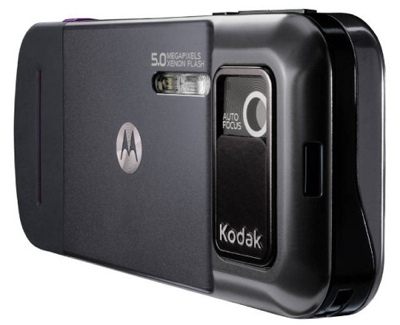
Motorola Motozine ZN5 is out, this time it's official

Well, the Motorola ZN5 is finally official - the 5 megapixel handset, which is co-branded by Kodak, offers some original cameraphone features that are bound to give shutterbugs a fair share of restless nights.
Information and photos of the Motorola ZN5 leaked online numerous times and we are glad to see it officially posted now. It turns out that the ZN5 is the first handset to be produced under the MOTOZINE lineup, which will be Motorola's new label for multimedia-rich devices. If all goes well, we hope to see more devices under that sub-brand.
The MOTOZINE ZN5 is a smartphone based on the Linux OS and runs on a Freescale 500MHz processor. All recently leaked Motorola phones seem to use that OS and that makes us wonder what happened to UIQ ones - Motorola used to be highly involved with UIQ technology in the past.
With the ZN5 users will enjoy a 2.4-inch QVGA TFT display and Wi-Fi connectivity. Stereo Bluetooth (A2DP), 3.5mm audio/video jack (TV-out), FM radio, microSD card slot and some 350MB of memory are also on board.
The touch-sensitive morphing keypad, called ModeShift and first introduced in Motorola E8, is also present here. It's got haptic feedback on every key press and key designations and backlight change in accordance to the currently used application.
The Motorola ZN5 will measure 12mm in thickness, which is a rather nice achievement - it actually puts it in Top 5 of slimmest 5 megapixel cameraphones. The body thickness however increases around the camera area to up to 16mm.
The ZN5 however managed to disappoint us with the lack of 3G connectivity - having only EDGE is a bit of a downer even if it's quad-band GSM, iPhone owners will tell you that for sure. We are guessing the reason for that is the Motozine ZN5 is targeted mainly at the Chinese market, were EDGE is as fast as it gets. We really hope that this feature will be updated as the device rolls throughout 3G-enabled markets.
Now in terms of photo-centric capabilities, we already told you that the new Motorola ZN5 will be able to offer some really nice surprises. We start off with the xenon flash, the auto focus assist beam, and some cunning low-light setup. Those things aren't new, but it's getting better.
The ZN5 camera will offer two apertures values, which is a first among cameraphones. The camera will automatically pick between F2.8 (the standard for all cameraphones) and F5.6 (when there is enough light). Now that may not mean much to you, but a tighter aperture such as F5.6 will actually bring less lens issues and better corner-to-corner sharpness.
The ZN5 is also capable of shooting in RAW image format. The image data is losslessly stored in TIFF format.
The Kodak participation has brought the Kodak Perfect Touch technology to the ZN5. While it sounds impressive, it's a mere quick fix of photos that will be available straight on the handset. We are guessing something like the Sony Ericsson PhotoFix option, which improves underexposed images and adds contrast.
The ZN5 also offers direct image upload to KODAK Gallery, as well as integration of the ShoZu client, which can upload images to various social networking clients.
Motorola ZN5 will be first available in China in July 2008 and is expected to ship around the world later this year. Pricing is yet unknown.
Bookmark this post:
Sunday, June 22, 2008
Review: Nokia N78
Nokia announced the N78 last February 2008 along with two other new phone models — the Nokia 6220 classic and the Nokia N96. It’s not yet available in the Philippines
At first, I thought the N78 would be just a slight improvement over its N77 predecessor (see my review of the Nokia N77 here) but turns out these two have very little things alike and the former isn’t a digital TV phone.

Let’s look at the specifications:
· 3.5G / HSDPA
· Assisted GPS
· 802.11 b/g WiFi
· 3.2 megapixel camera with Carl Zeiss optics, 2048×1536 pixels (autofocus)
· FM Radio Tuner & Transmitter
· Bluetooth v2.0 with A2DP
· 2.4 inch screen at 240 x 320 pixels
· 76 MB internal memory, 96 MB SDRAM memory, up to 8GB via microSD
· ARM 11 369 MHz processor
We’ll look into three main components of the phone and see how the Nokia N78 fairs in these departments — connectivity, entertainment and usability.
Connectivity.
The Nokia N78 ranks high on connectivity with up to 3.6Mbps on HSDPA, 11 to 54 Mbit/s on WiFi networks and 3 Mbit/s on Bluetooth. There’s also the microUSB 2.0 if you want high speed data transfer into the phone’s storage (it comes with a 2GB microSD card but is upgradeable to 8GB). You will always be prompted which access point to use when connecting to the Internet but sometimes it defaults to 3G even if there are wireless networks available.
The Assisted GPS works well enough combined with the Nokia Maps though most of Metro Manila areas aren’t that detailed. You’ll see the major thoroughfares but not the regular city streets.

Entertainment. The phone plays stereo music via speakers found on the top right and bottom left side of the unit but I didn’t find the sound quality any good. The audio quality degrades at top volume and sounds a bit broken. After playing two similar songs at the same time, I noticed that my Nokia 6210 has a much better bass compared to the N78 (though not as loud). The Podcast player is simple but does the job well. Just do a search for your favorite show and click on subscribe.
There are Mobile Video Services you can install (Flash apps) so you can subscribe and watch to mobile-version specific videos like YouTube, RocketBoom, Reuters, and CNN which makes video streaming/playback optimized and fast. This is similar to the iPhone/iPod Touch YouTube player. I love that “24″ Mobisodes Series — a 1 to 2 minutes mobile version of the popular TV series “24″. Video playback is sharp and crisp with minimal graining/pixelation.
There are two options for the built-in radio — Internet Radio and the Visual Radio (for tuning to local FM stations). You will need to connect the headphones to receive over-the-air FM transmisions. Alternatively, you can also hook up the Nokia MD-4 Mini Speakers (via the 3.5mm jack) which also serves as an external antenna.
A new feature, the FM Transmitter, is a nice addition. Just activate it, set the desired frequency and all of the music and videos you played will be broadcasted on all radio receivers nearby. It could be another FM supported phone, an FM stereo or even your car radio pumping out surround sound music from your Nokia N78. Reception is good up to 10 meters but can extend up to around 15-20m at LOS.

Usability. The Nokia N78 features a prominent directional pad at the center called the Navi-Wheel which was initially introduced in the N81 (see my review of the Nokia N81 here). It’s basically similar to the scroll wheel of the earlier iPods but is only usable on limited applications — Image Gallery and the Music Player. Feels great with “flicking” across your photo gallery. Oftentimes though, I find it too sensitive and becomes annoying. There’s an option to turn it off but I prefer they’d just added a sensitivity control.
The keypads are similar to the Nokia N82 but in the N78’s case, they’re in a continuous thin line so typing in them will take some getting used to and most of the time you’ll end up using your fingernails in order not to hit the other neighboring keys. The remaining buttons are embedded into the pad so you won’t notice them until you see the back-lit markings. One kink I noticed is the positioning of the “c” (cancel) button at the bottom right which is hard to get to during texting mode.
For most of the media applications, you can also switch screen orientation from diagonal to horizontal. The 3D UI animations, while a nice improvement, sometimes slows down the response time of the menus.
In Focus - the Camera. I never fancied the camera in camera-phones but the N78 (just like the N82 and the N95) with its Carl Zeiss optics changes all that. The Nokia N78 has very decent 3.2 MP auto-focus camera that can slug it out with most dedicated point-and-shoot digital cameras around. Lens design is Zeiss Tessar with aperture range between f/2.8 - f/4.6.
Did a couple of shots below as sample pictures I took (no image manipulation in Photoshop except for resize and JPEG compression).


Output may need some exposure corrections and for most shots, graining and pixelation is minimal in the background (click on the thumbnails to see bigger version of the pictures).
There’s more than enough camera features to tinker around — scene modes, flash modes, timer (2-20 secs), sequence mode (single shot, burst, or intervals of 10 secs. to 10 mins.), and colour tones. There are options for white balance, exposure compensation, contrast, brightness and ISO. Built-in lighting is only Flash LED though, not Xenon. At 3.2 megapixel, you can print up to 3M - Large format (8×10″). Photos can also be immediately uploaded and shared online via mobile accounts in Ovi, Flickr and Vox.
All-in-all, it’s a solid phone and could very well be a lightweight version of the N82. I just have this aversion to black shiny finishes that tend to get grimy and smothered with fingerprints all the time.
Bookmark this post:
Thursday, June 5, 2008
How Ringtones Work
Like computers, cars and PDAs, cell phones started out as purely functional pieces of technology, but quickly evolved plenty of fun frills to keep their users entertained. Today's phones have built-in video games, specialized background pictures, switchable faceplates and, of course, customizable ringtones.
A ringtones version of your new favorite song does serve some purpose, of course -- it lets you distinguish your own phone's ring from other phones ringing around you -- but more than anything else, it's a chance to add personality to technology.
In this article, we'll see what ringtones are all about and we'll find out how you can add new tunes to your phone (if it's compatible). As we'll see, it's incredibly easy to find and add a song you like and load it up.
Ringtone Basics
If you've read How Cell Phones Work, you know the central "brain" of a cell phone is a small microprocessor. Just like the microprocessor in a computer, this unit controls everything that the cell phone does, working from information stored in the phone's memory.
At its core, a ringtone is simply a computer program stored on the cell phone's memory chip. This program's sole purpose in life is to tell the microprocessor what the phone's speaker system should do when the phone's receiver picks up an incoming call.
Ringtone-capable phones already have a range of notes stored in memory (that is, they include information on speaker vibration frequencies that will produce particular tones). The ringtone program only has to tell the microprocessor which of these notes to play, in which order and at what speed. By adjusting these variables, the microprocessor can play an infinite number of ringtones.
The clearest example of this sort of programming language is the Ringing Tone Text Transfer Language (RTTTL) format, developed by Nokia. Here's a typical section of RTTTL code, with a description of what each bit means.


In order to enable a ringtone on your phone, you just have to get the appropriate program into the phone's memory. In the next section, we'll look at the different ways you can do this.
Getting a Tone
The first step in adding a ringtone to your phone is finding one that you like. Generally, this means checking out one of the dozens of ringtone sites on the Internet and picking a good one that's compatible with your phone model. Some sites charge for the use of their ringtones, to cover song royalties, among other things, and some sites provide tones for free. A lot of older songs (such as classical pieces) have been around long enough that their copyright has expired -- they've entered the public domain, so they're free for anybody to use.
Once you've found a ringtone you like, you just have to get it into your phone's memory. There are a number of different ways to do this, depending on your particular phone model. The three major ways to add a new ringtone are:
* Load the ringtone program into the phone from a computer, via a data cable.
* Send the program to the phone over the airwaves.
* Type the program into the phone directly, using the keypad.
Phones may use one particular method exclusively, but a lot of phones have multiple options. Check your instruction manual to find out what your phone can do.
If you have the right phone, software and computer configuration, loading ringtones through a data link or infrared interface may be the simplest option, but it requires some work and expenditure to set everything up initially.
A more popular method is to send the new ringtone to your phone over the airwaves. This approach originated with Nokia, but other manufacturers have since added this capability to their phones. The basic idea is to send the phone a special sort of text message that contains the program for the ringtone -- in most phones, this is done using either Short Message Service or Enhanced Messaging Service technology.
Nokia originally developed Short Message Service to send short text messages between phones. Later, Nokia and Intel created smart messaging, a special protocol for sending functional, non-text information through SMS. Basically, a "smart" SMS message is coded to allow the equipped phone to recognize it as a graphic, ringtone, etc.
The most common method for transferring ringtones over the airwaves is to visit a ringtone Web site, pick out a tone, enter your phone number and let the site administrators send the message to your phone directly. Alternatively, you can use an SMS gateway site to send a specific message to the phone yourself. This means finding the code for the ringtone you want, finding it in the appropriate format (Nokia binary format, for example) and copying it at as a smart message.
Cell phones with a melody composer let you type in ringtones directly. The easiest way to use this feature is to find the appropriate "keypress sequence" for a tune on the Web. This sequence will tell you which buttons to press on your phone, in composer mode, to program the ringtone you want (check your instruction manual for details on your phone's composer mode). Of course, for the ringtone to work, the sequence has to be in the right format. Fortunately, you can find tons of sequences online for most phone models.
As cell phones evolve, ringtones will get more complex as well. Already, some phones are boasting polyphonic ringtone capability, meaning the phone can play more than one note at a time, allowing for richer, harmonized tunes. Some new phones let you record songs and voice messages for ringtones yourself. Many of these models also let you assign different ringtones to different incoming numbers, so you know who's calling you without even looking at your phone. Before long, ringtones will have graduated from an extraneous thrill to an essential phone feature.
For details on various ringtone formats, as well as hundreds of available ringtones online, check out the link below.
Bookmark this post:
Subscribe to:
Posts (Atom)


 Posts
Posts


